Purchasing a New Computer
- Jonathan Sansone
- Oct 3, 2025
- 8 min read
Introduction
Purchasing a new computer can be a daunting task, especially if you aren’t tech savvy. This guide will cover a few things, such as what you need to think about when considering a new computer, and covering basic terminology so you can better understand what you are purchasing.

Understanding What You Need
There are plenty of options in the market today when choosing a computer, and it can be quite daunting to find the right one. The price ranges also go from one end of the spectrum to the other. The first thing to do when you start the process is to understand your own requirements for a workstation. The table below covers some of the key things to keep in mind when determining this.
Requirements
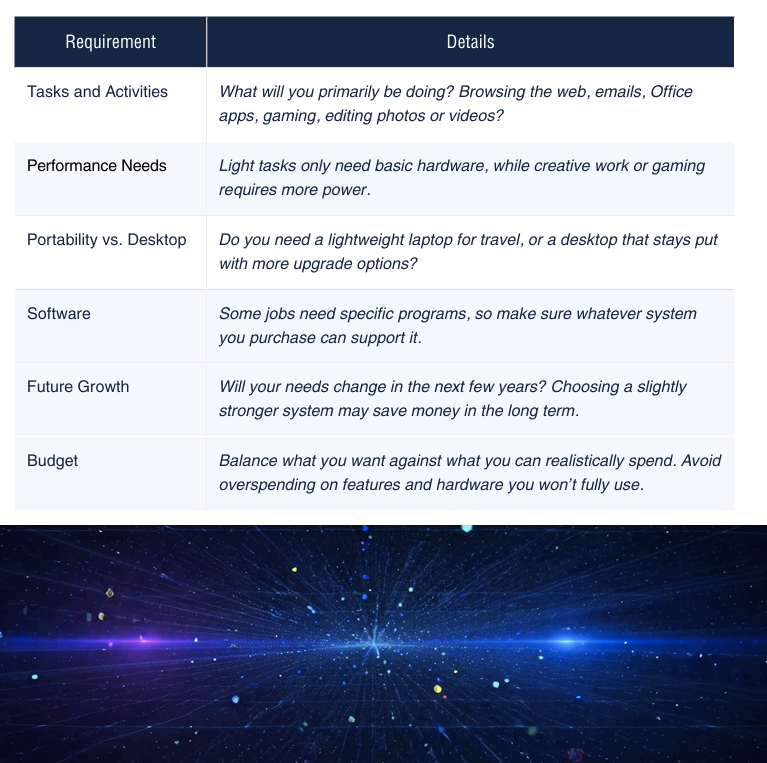
Hardware
Now that you have an idea about what your needs and requirements are in a new computer, it’s important to understand the basics of computer hardware. You’ve likely heard of these terms before, but let’s break down the key components that make a computer work.
RAM
RAM (Random Access Memory), also referred to as ‘Memory’, is your computer’s short-term memory. It temporarily holds the apps and files you’re actively using so they run quickly. The more RAM you have, the smoother things like multitasking are. You may be asking yourself, “How much RAM do I need?” The answer to that question will depend on the requirements you determined at the start of this guide. RAM size is represented in Gigabytes (GB). The table below will give you more information on what various sizes of RAM will do
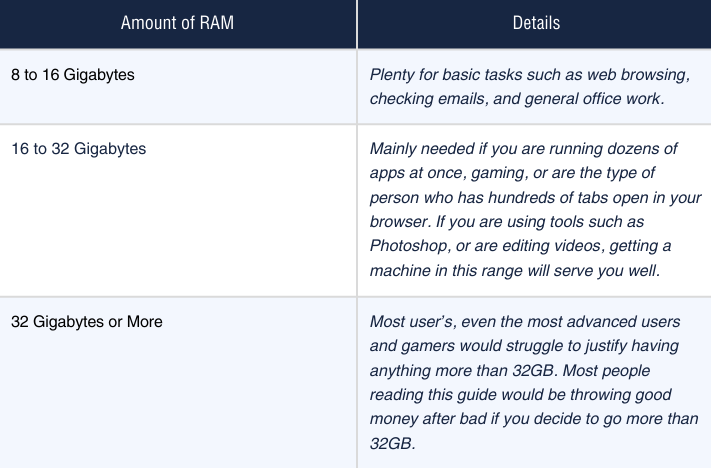
VaBeachTech recommends at a minimum, sticking with 16GB of RAM. Most computers used for basic tasks will be fine with 8GB; however, as your operating system (covered more below) gets updates, the more RAM it may take just for it to run properly. For the most part, RAM can be easily upgraded by anyone who can use a screwdriver while watching a YouTube video. It’s one of the easiest components to upgrade in a computer. There are exceptions, however. Some laptops have the RAM soldered onto the main board making it nearly impossible for it to be upgraded.
Storage
Storage, also referred to as a hard drive, is your computer’s long-term memory. It’s where your files, programs, and operating system files are kept. Like RAM, sizes of storage are usually represented in gigabytes (GB) as well as terabytes (TB). Just for reference, a terabyte is approximately 1000x more storage than 1GB. There are two types of hard drives to consider when purchasing a computer.

VaBeachTech recommends sticking with SSD’s. The cost of SSD’s have come down significantly over the last decade and are pretty much the standard with new computer builds. So now that you understand what storage is, the next thing to think about is how much storage you need. The table below describes what the various sizes of storage can do for you.
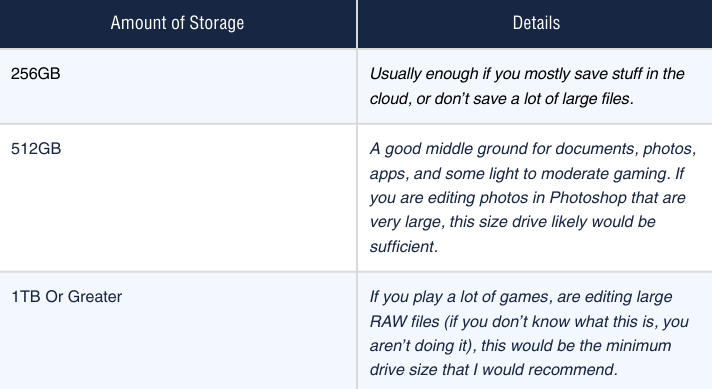
There are storage sizes smaller than 256GB, however; VaBeachTech will generally recommend nothing less than 256GB of storage. Occasionally you will find a combination of SSDs and HDDs in desktop computers. The SSD is primarily used to run the operating system, playing games, or video editing, while the HDD is utilized for long term file storage. Like RAM, storage can be upgraded on both desktops and laptops, however; there are some devices that have storage soldered onto the main board, making it very difficult to impossible to upgrade.
CPU
The CPU, also referred to as the Processor, is the brain of your computer. It handles instructions and runs your applications. The faster or newer the processor typically means quicker performance for things like loading apps, editing, or gaming.
There are many different processors to choose from, but we’ll break down the basics to help guide you in the right direction. There are 2 main brands of processors on the market today, Intel and AMD.
A good way to think of it would be to compare a Honda and a Toyota. They’re different cars, but they both get you from point A to point B, and the mechanics of driving are essentially the same for both. The table below will help guide you in the appropriate direction.

Most laptop CPUs cannot be upgraded after the fact, so make sure you choose wisely up front. Desktops often allow CPU upgrades but some may require a whole new motherboard, at which point, it may be wiser to just invest in a new machine. Price jumps in computers and laptops usually occur as you move up in Processor types. For instance, an Intel i3 is going to be significantly cheaper than a computer with an Intel i9. VaBeachTech recommends getting at least an Intel i5 or an AMD Ryzen 5. This will ensure that your computer will last you longer and serve you well.
ARM Devices
You may come across a device with an ARM processor. ARM processors are designed for efficiency, giving devices much longer battery life since they sip power compared to Intel and AMD chips. The trade-off is that fewer applications are fully supported on ARM, so you may run into compatibility limits. If you just are using web-based applications, browsing the web, or checking email, an ARM device should be on your list of considerations. This can also be very important if you frequently find yourself mobile and not around a place to charge your device.

Operating Systems
Now that hardware is out of the way, the next thing to think about is what operating system (also referred to as OS) you want to use. What is an operating system? It is the main software that manages a computer’s hardware and provides services for other software applications. It essentially acts as a bridge between you the user, the applications you run, and the physical components of your computer such as the CPU, memory, and storage. When looking at a computer purchase, you will be faced nine times out of ten with 2 options. Microsoft Windows, or Apple MacOS.
Microsoft Windows
You’ve likely heard of Windows and probably have used it at work or at home. Windows is one of the most widely adopted operating systems in the market. It’s highly compatible with Microsoft Office products such as Word, Excel, PowerPoint, etc.
Windows is generally easy to use for users of all skillsets, and more software is compatible with Windows than MacOS, however that gap is closing quick. Computers and laptops running Microsoft Windows tend to cost less. One of the downsides is that there are a multitude of different computer manufacturers that utilize Windows with varying hardware. This can make support a challenge if that’s an important factor for you.
Apple MacOS
This section will be a bit longer than the Windows section. Windows machines are pretty cut, dry, and universal. MacOS is the same, but there are other considerations you need to think about if an Apple computer is something you are considering.
You’ve likely heard of Apple computers and MacOS. This operating system is only available on an Apple computer or laptop. MacOS, like Windows, isn’t difficult to use (refer to the car analogy earlier), but have their differences. MacOS is great if you are already in the Apple ecosystem, having an iPhone, iPad, Apple TV, etc. The reason it is great is that all of their devices and software integrate with other Apple products seamlessly. You can easily start a text on an iPhone and continue the conversation on your Mac.
While not completely software related, Apple computer’s typically hold their value much better than Windows devices, however; Apple computers (aka ‘Macs’) are considerably more expensive. Apple computers for the most part cannot easily have their hardware such as RAM or CPU upgraded.
Earlier in this guide various types of CPUs were listed. Apple doesn’t utilize Intel (anymore) or AMD but rather has developed their own CPU. You’ve likely heard it referred to by Apple as M1, M2, M3, M4, etc. These proprietary processors also have the RAM and storage on the physical processor, so simply upgrading RAM is virtually impossible.
If you decide an Apple is right for you, you can purchase a used one for a much lower price and still get many years out of it. Even their oldest ‘M’ series processor, the M1, is a terrific choice. All generations of the Mac from the M1 onward, have extremely good battery life while maintaining great performance.
If you’re a serious gamer, we wouldn’t recommend getting an Apple computer, despite what they may say.

Other Device Considerations
There are other options in the market. You aren’t limited to using Microsoft Windows or MacOS. Depending on your use case, one of the below options may be a better fit.
Chromebooks
If you have a child in public school these days, especially in Virginia Beach, you already know the name ‘Chromebook’. A Chromebook is a laptop that runs Google’s operating system, ChromeOS. It is designed to be simple, fast, and mostly cloud based. They are optimized for web browsing, email, and apps from the Google Play Store.
Chromebooks are great for students or casual users who mainly use the internet, Google Docs, or streaming services such as Netflix. They also usually cost a lot less than Windows or Apple devices, and have a much better battery life.
Chromebooks do have limited compatibility with traditional desktop software, but can be a good option if you primarily work on the web.
Windows "S Mode" Laptops
This operation system is a scaled back version of the traditional Windows operating system. Computers with “S Mode” are typically budget devices, and application support can be more limiting as apps can primarily only be downloaded through the Microsoft Store.
Similar to Chromebooks in simplicity, these devices are difficult to upgrade and aren’t designed for anything other than browsing the web, email, word processing, and similar activities.
Some Other Things to Note
This guide is tailored for the average user. If you are (or purchasing for) a serious gamer, then there is an additional piece of hardware you will likely require, a video card/graphics card. There will be a separate guide for graphics cards. These can get expensive, fast. Some computers in big box stores include these graphics cards in their builds which can dramatically impact the price. If you are considering a device that needs or has a graphics card and you would like to book a phone consult, we would be happy to help.
VaBeachTech Can Help
Even if after reading through this guide you still may feel uncertain, but our hope is that you have more information heading into this purchase than you had before. If you still want or need help navigating the purchase of a new computer, please reach out to us for a consult so we can help guide you through the process.
Disclaimer
This guide is provided as general information and professional opinion only. It is not a substitute for individualized advice, and no guarantee is made regarding specific outcomes. Technology needs and solutions vary, and readers should evaluate options based on their own circumstances before making purchasing decisions.
Sansone Advisory Group LLC d.b.a VaBeachTech, or its staff make no warranties, express or implied, and assumes to responsibility for errors, omissions, or outcomes resulting from the use of this guide. By using this material, you agree to release and hold harmless the author, Sansone Advisory Group LLC d.b.a. VaBeachTech and any affiliated parties from any liability related to your use of the information provided.
VaBeachTech is not sponsored, endorsed, or compensated by any hardware or software manufacturer, retailer, or brand mentioned in this guide. All opinions are independent and provided solely for the benefit of the reader.
Comments