How to Secure Your Home Network (Without Getting Too Technical)
- Jonathan Sansone
- Jan 5
- 5 min read
Setting up proper security for your home network can feel overwhelming, especially if you're not particularly tech-savvy. You've probably heard horror stories about hackers accessing home networks, stealing personal information, or even watching through security cameras. The good news? Most home network security comes down to changing a few settings and developing some simple habits: no computer science degree required.
Let's walk through the essential steps to protect your home network, your devices, and your family's digital privacy.
Start With Your Router: Change the Defaults
Your router is the gateway between your home devices and the internet, making it your first line of defense. Unfortunately, most people never change the default settings that come with their router: and that's exactly what hackers count on.
Change Your Admin Password
Every router comes with a default username and password for accessing its settings (often something like "admin/admin" or "admin/password"). These default credentials are published online and widely known. Log into your router's settings by typing its IP address into your web browser (usually 192.168.1.1 or 192.168.0.1) and create a strong, unique password for administrative access.
Update Your Network Name and Password
Your Wi-Fi network name (called an SSID) and password also need attention. Change your network name from the default (like "NETGEAR_5G") to something unique but not personally identifying: avoid using your last name or address. Create a strong Wi-Fi password using a mix of uppercase letters, lowercase letters, numbers, and symbols. Make it at least 12 characters long.
Enable Strong Encryption
This is where you'll see terms like WPA2 and WPA3, but don't let the acronyms scare you. Think of encryption as a secret code that scrambles your internet traffic so only your devices can understand it.
In your router settings, look for a "Security" or "Wireless Security" section. Choose WPA3 if available (it's the newest and most secure), or WPA2 if WPA3 isn't an option. Avoid anything labeled WEP or "Open": these are either outdated or provide no security at all.
Most routers manufactured in the last few years support WPA3, but if you're using an older router, WPA2 is still significantly better than no encryption.
Keep Your Firmware Updated
Router firmware is like the operating system for your router: it controls how everything works and includes security patches for newly discovered vulnerabilities. Many people forget about firmware updates because routers don't remind you like your phone or computer does.
Check your router's settings for a "Firmware Update" or "Router Update" section. If available, enable automatic updates so your router stays current without you having to remember. If automatic updates aren't available, make a note to check for updates every few months.
Set Up a Guest Network
A guest network creates a separate Wi-Fi connection for visitors, delivery drivers, or smart home devices. This keeps your main network: and the devices connected to it: separate from temporary users.
Most modern routers make this easy to set up through a "Guest Network" option in the wireless settings. Give your guest network a different name and password, and consider setting it to automatically disable after a certain time period.
Separate Your Smart Home Devices
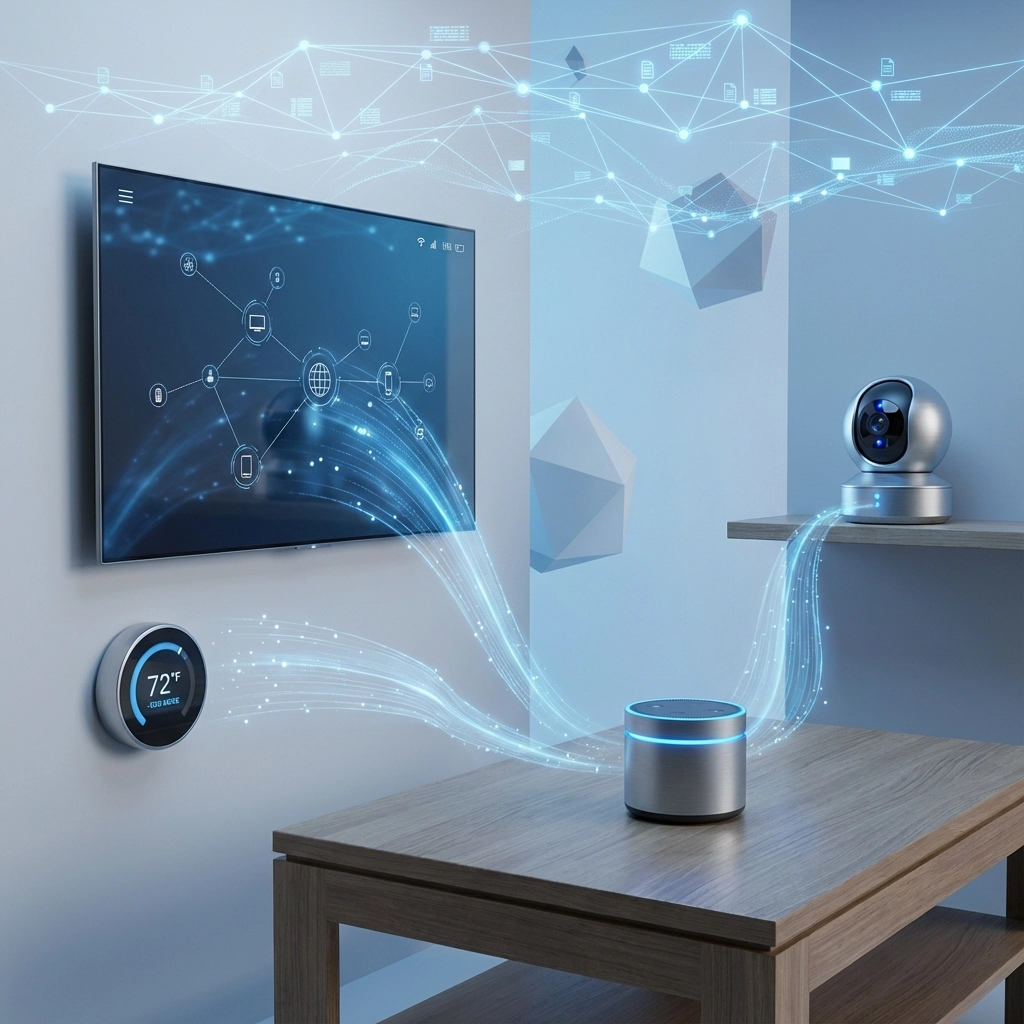
If you have smart TVs, thermostats, security cameras, or other internet-connected devices, consider putting them on your guest network or a dedicated IoT (Internet of Things) network if your router supports it. These devices often have weaker security than your computers and phones, so isolating them prevents a compromised smart device from accessing your more sensitive data.
Enable Your Router's Built-In Firewall
Most routers come with a firewall feature that blocks suspicious incoming connections. This should typically be enabled by default, but it's worth checking. Look for a "Firewall" or "Security" section in your router settings and make sure it's turned on.
You might also see options for "SPI Firewall" or "NAT Firewall": these are good to enable as well, as they provide additional layers of protection.
Turn Off WPS
Wi-Fi Protected Setup (WPS) was designed to make connecting devices easier by letting you push a button or enter a PIN instead of typing your full Wi-Fi password. However, this convenience feature has known security vulnerabilities that hackers can exploit.
In your router settings, look for WPS options and disable them. The slight inconvenience of typing your full Wi-Fi password is worth the security benefit.
Consider DNS Filtering
Domain Name System (DNS) filtering is like having a security guard that checks every website request before it reaches your devices. When you type a web address, DNS translates that into the actual server address: and DNS filtering can block requests to known malicious sites.
Some routers offer built-in DNS filtering, or you can change your DNS settings to use services like OpenDNS or Cloudflare for Families, which automatically block malicious and inappropriate content.
Set Up Multi-Factor Authentication Where Possible
If your router supports it, enable two-factor authentication for administrative access. This means you'll need both your password and a code from your phone to access router settings: making it much harder for someone to break in even if they guess your password.
Not all home routers support this feature, but it's worth checking, especially on newer or business-grade equipment.
Backup Your Router Configuration
Once you've configured all these security settings, save a backup of your router configuration. Most routers have an option to export or backup settings in the administration panel. This way, if you need to reset your router or replace it, you won't have to reconfigure everything from scratch.
Stay Alert for Phishing and Social Engineering
No amount of network security can protect against human error. Be cautious about:
Emails asking you to "verify" account information
Unexpected phone calls claiming to be from your internet provider
Links in text messages, especially those claiming urgent action is needed
Software downloads from unfamiliar websites
When in doubt, go directly to the official website of any company contacting you, rather than clicking links in emails or texts.
Regular Monitoring and Maintenance
Every few months, take a few minutes to:
Check connected devices in your router settings: remove any you don't recognize
Review your Wi-Fi password strength and consider changing it
Verify that firmware updates are current
Test your guest network to make sure it's still working properly
Know When to Ask for Help
While these steps cover the basics of home network security, every setup is different. If you're managing a home office, have multiple family members working remotely, or simply want peace of mind that everything is configured correctly, professional help can be valuable.
At VaBeachTech, we help Hampton Roads residents and small businesses with network security assessments and configuration. Whether you need help setting up these protections or want a professional review of your current setup, we're here to help without the technical jargon or high-pressure sales tactics.
Home network security doesn't have to be complicated, but it is essential. Start with changing your default passwords and enabling encryption: these two steps alone will put you ahead of most home networks. Then work through the other recommendations at your own pace.
Your family's digital safety is worth the small amount of time these changes require. If you need guidance or prefer to have a professional handle the setup, contact us for a consultation. We're happy to help you secure your home network the right way.
Comments